




In Valorant, every millisecond counts. One ping spike at the wrong moment and your headshot turns into a shot at thin air. You can own a powerful PC and have good aim, but if your connection is not steady you are playing with an invisible handicap.
A word of warning: 300 FPS is worth nothing if your ping is on a rollercoaster. FPS is how smooth the picture is on your screen. Ping is how long your action takes to reach the server. They are two completely different things, and it is ping that decides whether your shot registers at the right moment.
This guide is 100 % PC-focused. No consoles, no miracle software, no strange registry surgery. Just concrete, realistic ways to lower your ping in Valorant and steady your connection.
UNDERSTANDING PING (WITHOUT THE HEADACHE)
Ping is the time (in milliseconds) it takes for a piece of information to travel from your PC to the Valorant server and back. The lower it is, the more responsive your connection feels.
But ping on its own does not tell the whole story. There are two other readings worth knowing:
Jitter: this is how much your ping varies. If your ping keeps swinging from 20 ms to 80 ms, that is jitter. Even with a decent average ping, jitter makes the game stuttery and unpredictable.
Packet loss: these are data packets lost along the way. The result: teleporting, shots that do not register, ghost movement.
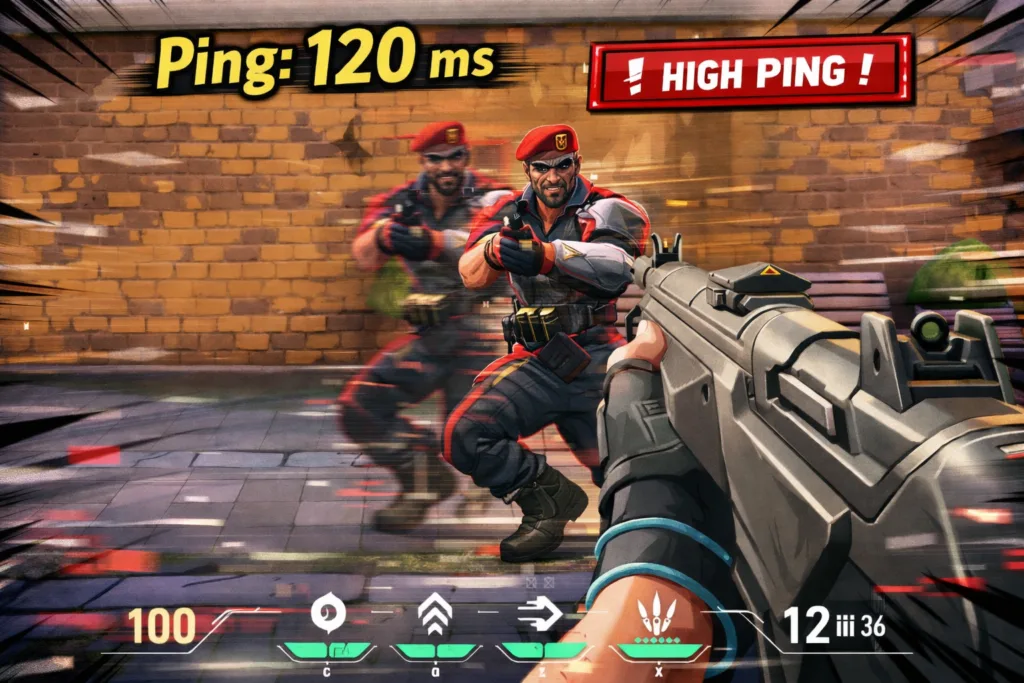
In Valorant, a good ping sits under 30 ms. Between 30 and 50 ms it is perfectly playable. Past 70 ms you start to feel the delay. And above 100 ms you are at a real disadvantage.
The thresholds to know for all three readings
Turning on the in-game network stats is pointless if you do not know what to make of the numbers. Here are the markers.
A steady 45 ms ping beats a ping bouncing between 15 and 90 ms. Consistency matters more than the average value, because consistency is what lets your brain adapt to the delay.
One important point: you cannot change the physical distance between you and Riot Games' servers. In North America they sit in several data centers (North Virginia, Illinois, Texas, California…), and there will always be a floor of latency tied to that distance. The goal is to cut everything that gets added on top of it for no reason.
FIRST, FIND OUT WHERE THE PROBLEM COMES FROM
Before throwing the eight fixes in this guide at the wall, take five minutes to identify the source. It will stop you buying a powerline adapter when the culprit was a Steam download.
Read the in-game network stats
Launch an unrated game with the stats display turned on and write down the three values: ping, jitter, packet loss. That is your baseline, everything else is measured against it.
A high but perfectly steady ping with no packet loss simply means distance to the server. Jitter or packet loss point instead to a local problem, in your own home.
Compare Wi-Fi and cable
If you play on Wi-Fi, plug in an Ethernet cable for one game, even temporarily by moving the PC next to the router. Start again and note the same three values.
If the jitter collapses on a wired connection, your problem is Wi-Fi and nothing else. No need to look further: skip to the section on choosing your connection.
Test your line on its own
Open a Windows command prompt and run ping 8.8.8.8 -n 50. You get fifty readings in a row against a very stable server, with a summary of the minimum, the maximum and the average.
A wide gap between the minimum and the maximum confirms your line is unstable, regardless of Valorant. If everything looks steady here but not in game, look at the software running on your PC.
Run the test again at another time
Run the same measurement early in the morning or in the early afternoon, outside peak hours. Note the difference.
If everything goes back to normal outside 6 to 10 p.m., the problem is congestion in your neighborhood or in your household. That is where QoS and freeing up bandwidth really pay off.
TAKE THE LOAD OFF YOUR ROUTER
Before touching a single setting, start by freeing up bandwidth. Your router shares the line between every connected device. The more of them there are, the more saturated your connection gets, and the higher your ping climbs in Valorant.

The worst enemies of your ping: 4K streaming (Netflix, YouTube, Twitch on another screen), background downloads, and automatic updates on consoles, phones or the other PCs in the house.
Put plainly, if someone is watching a movie in 4K while you play, it is like drinking through a straw from a bottle someone else is already sucking on. There is not much left for you.
If you can, play when the network is quieter: early in the morning, in the early afternoon, or late at night. Peak hours, roughly 6 to 10 p.m., are usually the worst, because the whole neighborhood is leaning on the same infrastructure.
SETTINGS TO CHECK IN VALORANT
Valorant has a few network options plenty of players never look at. First thing: do not let the game pick your server region without checking. The one selected automatically is not always the one giving you the best ping.
The region picker is not in the settings menu, it is on the play screen, before you start searching for a match. Every available region shows the ping you would get on it, and you can tick or untick the ones you accept.
Two limits worth knowing. You are not picking a server as such, you are picking from the regions open to your area. And only the party leader can change this setting: if you play with friends and you did not create the party, you will not have access to it.
For instance, if you are in the Southwest, Texas can sometimes perform worse than California depending on your ISP. Test the different regions and compare.
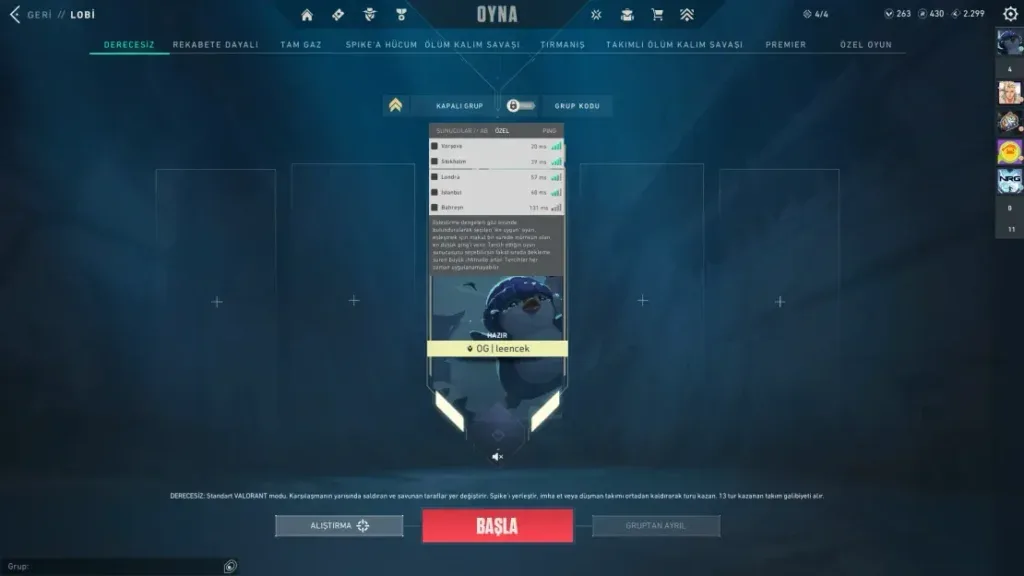
Also turn on the in-game network stats display (in Settings, then General, then Stats). That lets you watch your ping, packet loss and jitter in real time. If you notice regular packet loss, the problem is most likely your local connection, not the Riot servers.
CHOOSING THE BEST NETWORK CONNECTION
The type of connection between your PC and your router has a huge impact on how steady your ping is. It is often the first thing to change if you want a better connection in Valorant. Here are the three options, best to worst.
Ethernet (the ideal answer)
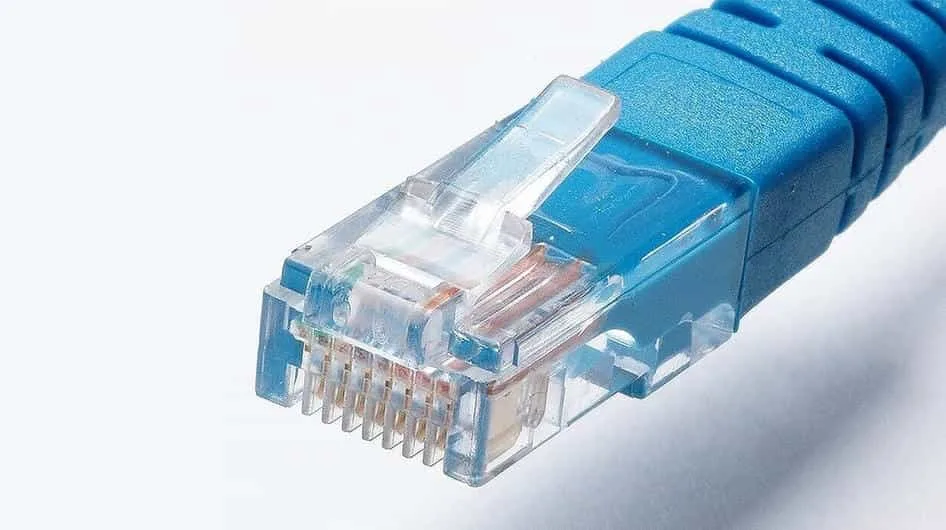
An Ethernet cable (RJ45) running straight from your PC to your router is the best option by a wide margin. A wired connection gives steady latency, zero interference and a constant throughput. No surprises, no random ping spikes.
If you can run a cable, run it! That is the top priority.
Powerline (the no-construction alternative)
A powerline adapter uses your home's electrical wiring to carry the internet signal. You plug one adapter in near your router, another near your PC, and that is it.
It is a solid alternative when Ethernet is off the table. In roughly 70 % of cases, a decent powerline kit is steadier than average Wi-Fi. Performance depends on the quality of your electrical wiring: avoid power strips and extension cords, always plug the adapters straight into a wall outlet. One catch specific to North American homes: our 120 V wiring is split across two half-phases, and if your two outlets sit on different half-phases the signal has to cross the panel, which can cut throughput hard. Larger houses are the most exposed. That is why many players here reach for MoCA instead, which carries Ethernet over the coax already running to nearly every room: it is more expensive, but far more predictable than powerline. Whichever you pick, check the retailer's return window before you buy and test the kit while you can still send it back.
Wi-Fi (last resort)
Wi-Fi is convenient, but it is the enemy of competitive gaming. Walls, interference from other devices, distance to the router: all of it produces jitter and latency spikes. If you are wondering why you still lag in Valorant despite a good connection, Wi-Fi is often the answer.
If you have no choice, use the 5 GHz band (faster and less crowded than 2.4 GHz), get as close to the router as you can, and stop every download while you play. If your router and your network card both support Wi-Fi 6, turn it on: it handles crowded environments far better, which cuts jitter in an apartment building where twenty networks overlap.
In short: Ethernet > powerline > Wi-Fi. It really is that simple.
ON THE PC SIDE AND THE ROUTER SIDE
Close background software
Your PC probably has several apps open eating bandwidth without you noticing. Open Task Manager (Ctrl + Shift + Esc), go to the Network column, and look at which apps are sending or receiving data.
The usual suspects: Steam and Epic Games (automatic updates), Windows Update, cloud services like Google Drive or OneDrive, and Discord while screen sharing. Close anything you do not strictly need during your session.
Reboot the router and the PC
It is basic, but it works. Rebooting your router clears its cache and can change the network route your data takes, which sometimes improves ping significantly.
Do it when your ping is abnormally high for no obvious reason. Power the router off, wait 2 to 3 minutes (long enough for it to reconnect cleanly and pick up a new route), then turn it back on. Restart your PC too, to free memory and close leftover processes.
QoS: giving your PC priority in the router settings
QoS (Quality of Service) is a setting available on many routers that lets you give priority to one device or one type of traffic. Turning QoS on for your PC makes the router reserve a share of the line for it, even when other devices are connected.
Open your router's interface (usually at 192.168.1.1, sometimes 192.168.0.1 or 10.0.0.1 on ISP-supplied gateways), look for the QoS or bandwidth management section, and add your PC as high priority. It is no silver bullet, but it is a small free edge.
Two causes people often forget
Your network card driver. An old driver can cause micro-dropouts that are hard to diagnose, because they show up neither in speed tests nor in a plain ping. Go to your motherboard manufacturer's website, download the latest network driver, and install it. It is a rare cause, but when that is it, nothing else fixes it.
The age of your router. A gateway more than five or six years old copes badly with a household running fifteen connected devices. Most ISPs, Xfinity and Spectrum included, will swap rented hardware on request, free or for a small fee. If you have exhausted every other lead, it is worth the call.
WHAT DOES NOT WORK (WE WOULD RATHER BE HONEST)
The internet is full of so-called fixes for less lag in Valorant. Most of them do nothing, and some can actively cause trouble.
RECAP: WHAT TO DO, AND IN WHICH ORDER
Not every action in this guide carries the same weight. Here is how to rank them against what you can actually do at home.
The eight actions ranked by payoff against the effort they ask for.
| Action | Payoff | Difficulty | Cost | Comment |
|---|---|---|---|---|
| Switch to Ethernet | High | Easy | Free if you own a cable | The only move that kills both jitter and latency spikes at once. |
| Free up bandwidth | High | Easy | Free | Stopping a 4K stream on the network changes things immediately. |
| Close background software | Medium | Easy | Free | Steam, Epic and cloud services spend their time downloading. |
| Pick your server region | Medium | Easy | Free | Mostly useful when the default region is not the closest one. |
| Install a powerline adapter | Medium | Moderate | $35 to $60 | A good compromise when running a cable is out of the question. |
| Reboot the router | Variable | Easy | Free | Can change your network route, worth doing when ping climbs for no reason. |
| Turn on QoS | Low | Moderate | Free | A small edge, and it depends a lot on the router model. |
| Update the network driver | Low | Easy | Free | Rare but real: an old driver can cause micro-dropouts. |
Conclusion: what to take away
Let us be clear: you cannot remove latency. It depends on your distance to the Riot Games servers, on your ISP, and on the network infrastructure. But you can steady it, and that is what makes the difference in game.
A consistent 35 ms ping is far better than a ping bouncing between 15 and 90 ms. Stability matters more than shaving off 3 ms.
The priority actions, in short: switch to Ethernet if you can, close the apps you do not need, free up your router's bandwidth, pick your server region in Valorant, and reboot the router when things lag. Simple, free and effective.
FAQ: COMMON QUESTIONS ABOUT VALORANT PING
What is the ideal ping for Valorant?
Under 30 ms is excellent. Between 30 and 50 ms you will barely feel any delay. Past 70 ms it starts to get in the way, especially in close duels.
Does fiber lower your ping in Valorant?
Yes, fiber generally gives a better ping than DSL or cable thanks to lower baseline latency. But fiber alone does not fix everything: if you play over Wi-Fi with 10 devices connected, you will still have problems.
Why is my ping fine but the game still lags?
That usually comes down to jitter or packet loss. Your average ping can look fine, but if it swings a lot or if packets go missing, the game will stutter. Turn on the network stats display in Valorant to check.
Can a VPN improve your ping in Valorant?
In the vast majority of cases, no. A VPN adds a middleman between you and the server, which raises latency. It only helps if your ISP routes very badly towards the Riot servers, which is rare.
How do you see your ping in game in Valorant?
Go to Settings, then General, then Stats, and turn on the network data display. You will see your ping, packet loss and other readings right in the middle of your match.
Is a powerline adapter really better than Wi-Fi for Valorant?
Usually, yes. A powerline adapter gives a steadier connection with less jitter than Wi-Fi. Performance does depend on your electrical wiring, though. In a recent home with clean wiring, powerline will most likely be a real step up from Wi-Fi.
At what point does jitter become a problem?
Under 5 ms you will not feel it. Between 5 and 15 ms it stays playable, but you start to sense the irregularity in fast duels. Past 20 ms the game turns unpredictable: that is often worse than a high but steady ping.
Does changing your DNS improve in-game ping?
No. DNS only translates domain names into IP addresses, at connection time. Once you are in a match it plays no part at all in the exchanges with the game server. Moving to a public DNS can speed up how fast web pages open, but it will not change a single fraction of a millisecond of your Valorant ping.